
A long time ago, I noticed an open-source project called Khoj. At the time, the keywords I tagged in my mind were: Obsidian plugin support, Agent, and local knowledge base management. However, during that period, I was building knowledge graphs for tech companies and needed to call upon many more external tools, so I could only add Khoj to my To-Do List (another reason was that it didn't support the Gemini API at the time).
Recently, while comparing and studying DeepSeek-R1, GPT o1/o3, Gemini 2.0, and Claude 3.5, I decided to deploy Khoj.
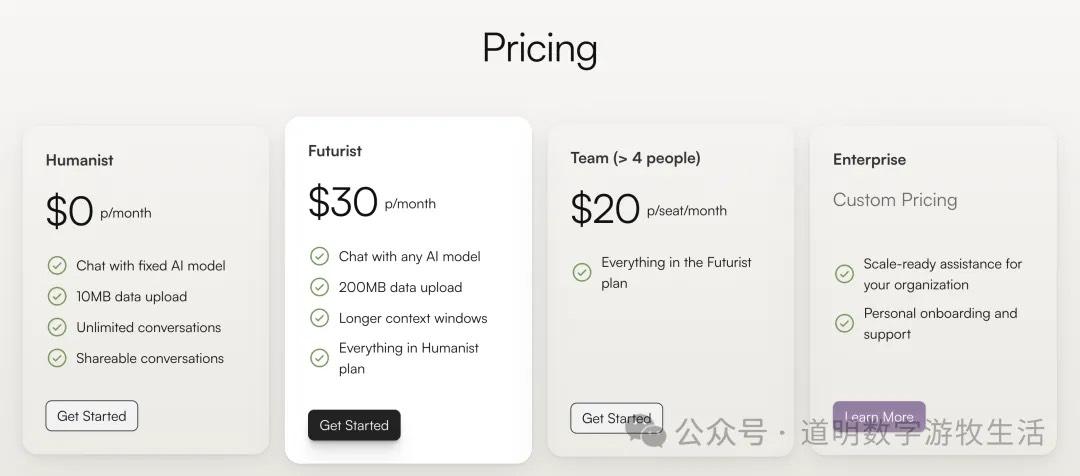
First, let's look at the introduction on Khoj's homepage. This page is the interface for the online version. It's available for free but with a very low quota; the paid version is $30 per month, which is quite expensive.
However, for me, self-hosting is the way to go. The project is open-source and can be installed directly via Python's PiP or using Docker. Considering that containerized deployment is more convenient for the backend database, code execution sandbox, and search engine, I chose Docker.
Since it's being used on Windows, it requires a WSL environment. By comparison, Mac is much more convenient (it's the same old story—I continue to be bearish on Windows gradually falling behind in the AI era).
Starting the installation process:
- Download Docker Desktop.
- Install docker-compose in the terminal:
brew install docker-compose - Download Khoj's
docker-compose.yml:mkdir ~/.khoj && cd ~/.khojwget https://raw.githubusercontent.com/khoj-ai/khoj/master/docker-compose.yml
The above code comes from Khoj's official help documentation: https://docs.khoj.dev/get-started/setup?os=macos
The difference is that the official documentation suggests installing Docker via brew, but since the Docker Desktop version is standard on my system, I skipped that step. For those who haven't installed Docker, I recommend downloading the Desktop version directly from the official website for peace of mind.
However, considering that accessing Docker in mainland China might be inconvenient, some network settings will be necessary.
After downloading the docker-compose.yml file, you need to modify some configurations. For simplicity, I've screenshotted the official documentation.
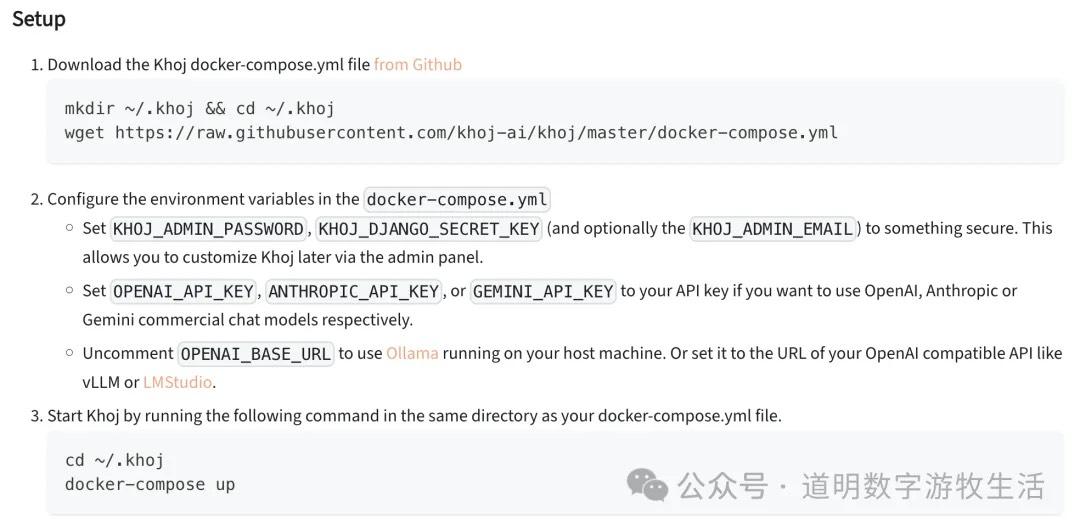
There are several ways to proceed: one is using APIs, which currently support OpenAI, Claude, and Gemini (finally!). For me, I un-commented the GEMINI_API_KEY line without hesitation and filled in my API key from Google AI Studio.
I must continue to praise Gemini 2.0, not just because I think it's the best model currently available, but also because Google generously provides developers with a free quota: 1500 calls per day, with no more than 10 requests per minute. Basically, as long as you aren't "distilling" their models, it's sufficient for most use cases. Even if it isn't enough, you can use 1.5; even today, 1.5 is perfectly fine for work, just a bit slower.
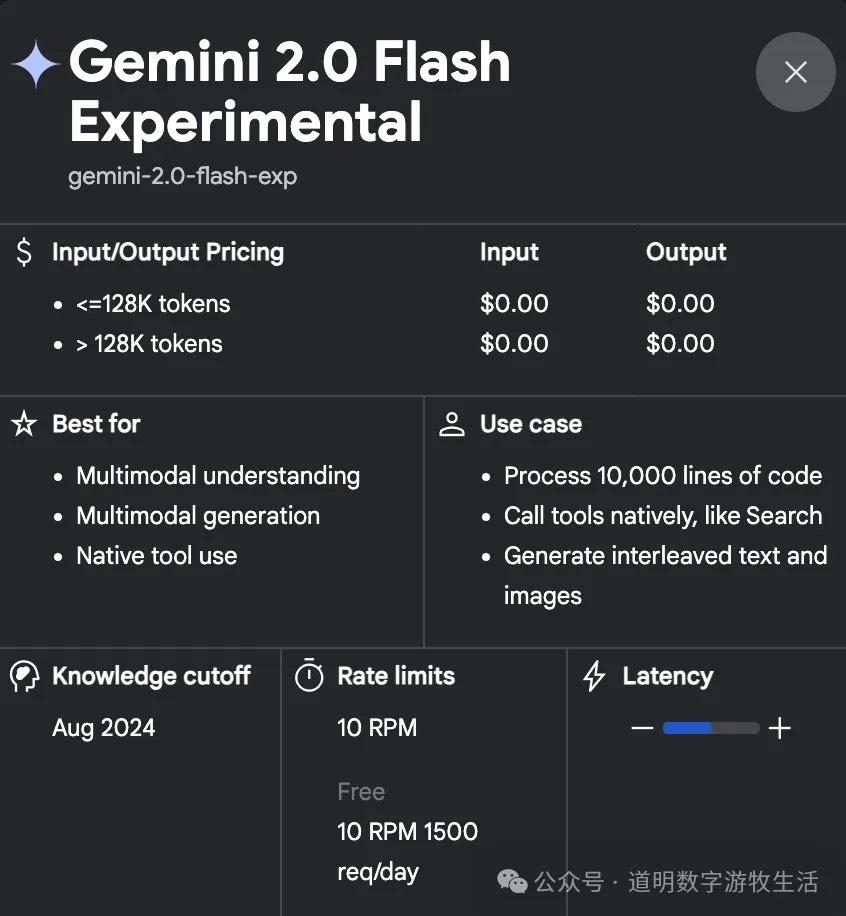
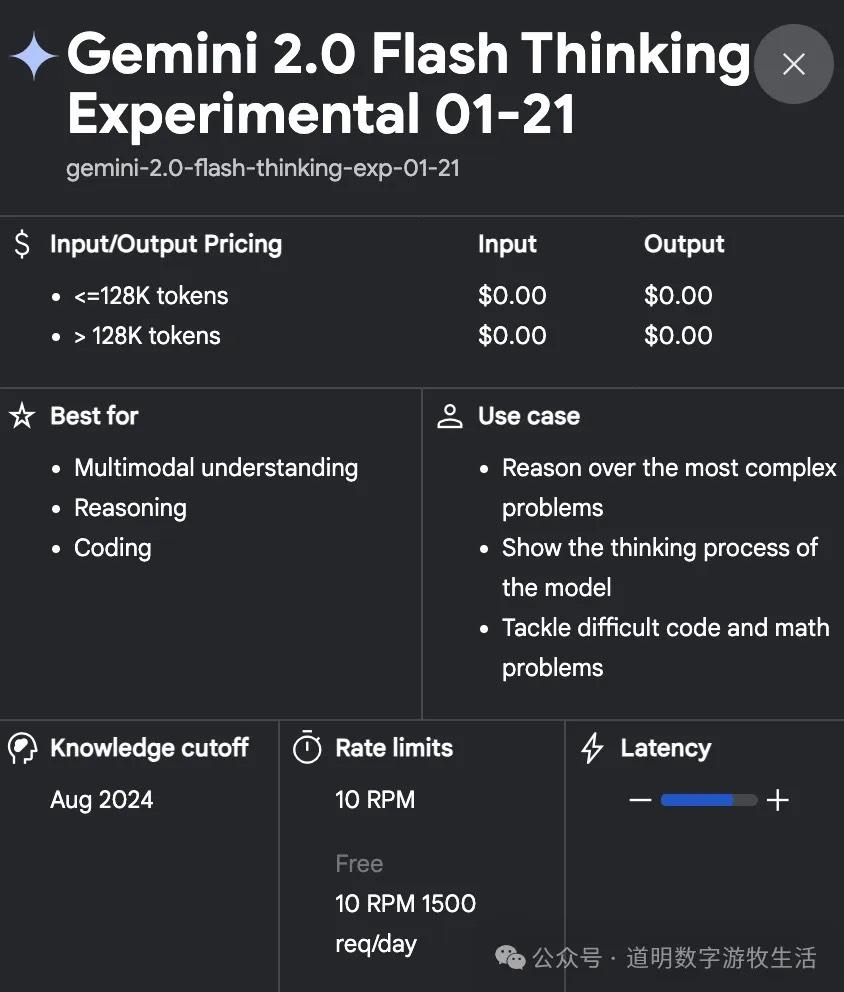
In my initial setup, I only changed the username/password and the Gemini API Key.
Next, run:
docker-compose up
The first time you pull images and initialize, it takes some time. Once the command line returns the following prompt, it's ready for use.
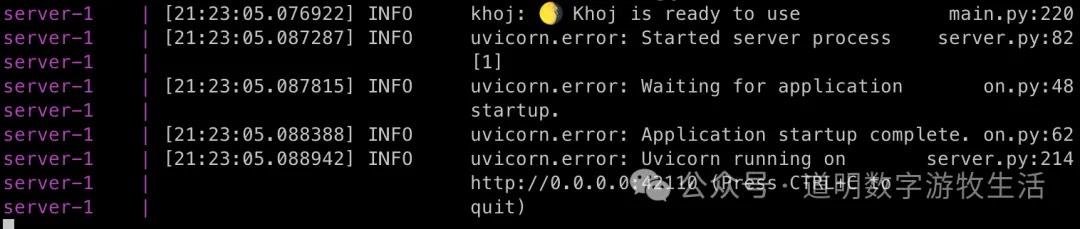
A small "gotcha": for the first step, you shouldn't open the local application homepage (localhost:42110) in your browser. Instead, go to the admin page: http://localhost:42110/server/admin/, which will require the username and password you configured earlier.
On the management page, you need to add a model. Select "Chat Model" from the left sidebar, then click the "+" icon in the top right corner.
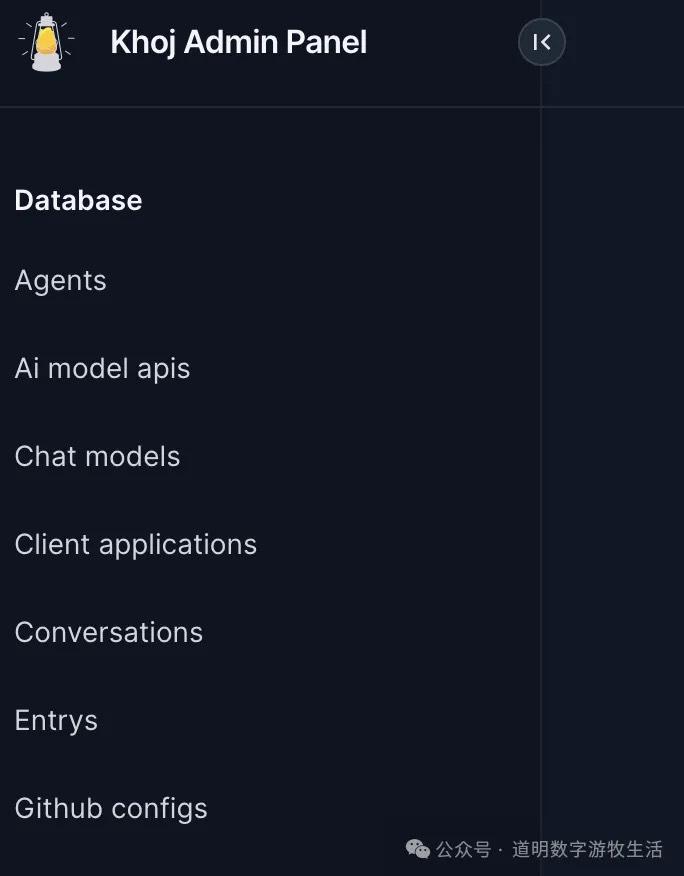
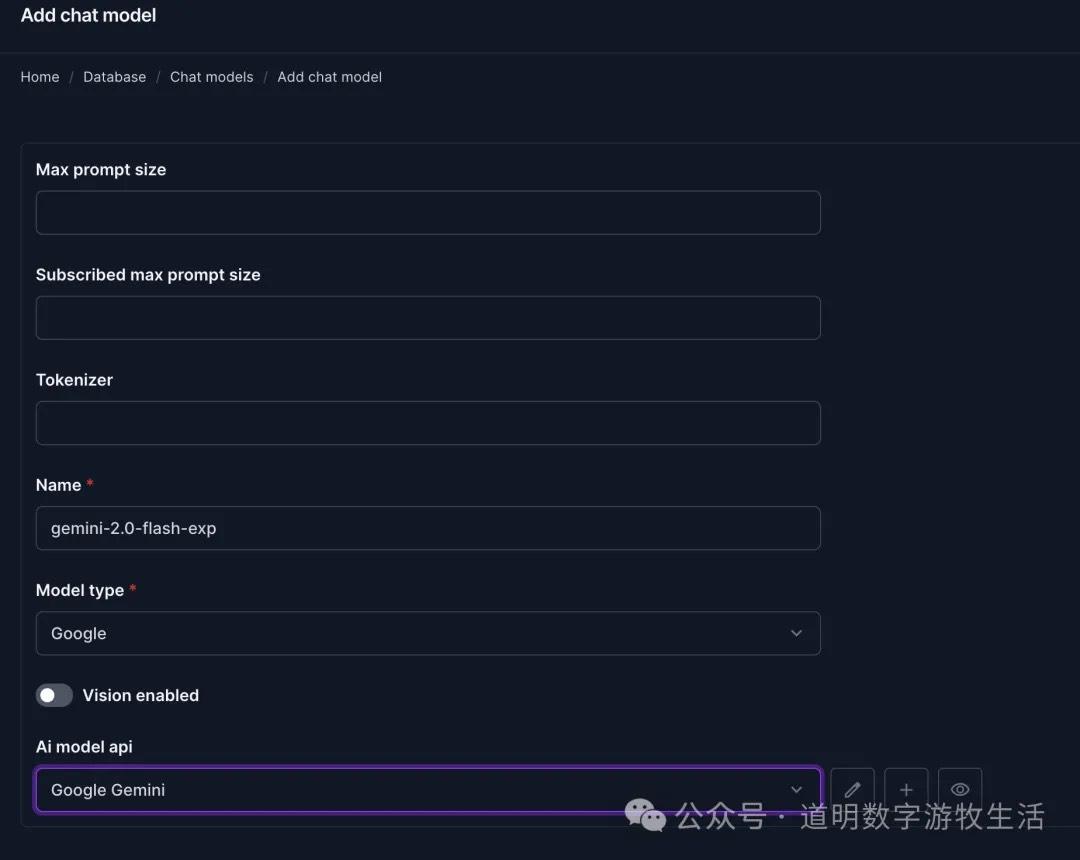
In my model settings page, I called Gemini 2.0 Flash. Fill it out as shown above—the model name must be correct, the model category should be "Google", and the API should be "Google Gemini".
Don't forget to click "Save" in the bottom right corner.
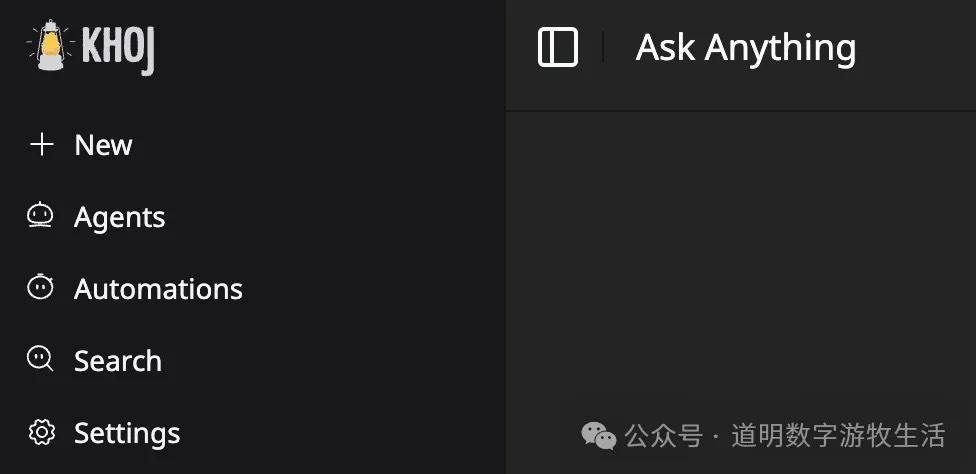
The model setup is now complete. Next, go to the homepage at localhost:42110. It looks like this:
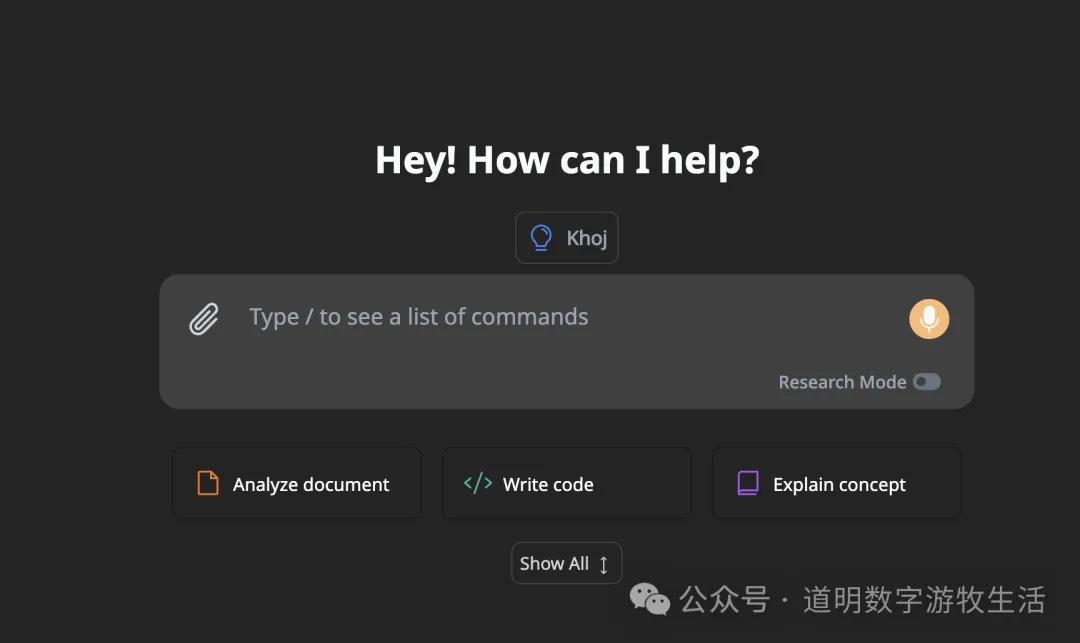
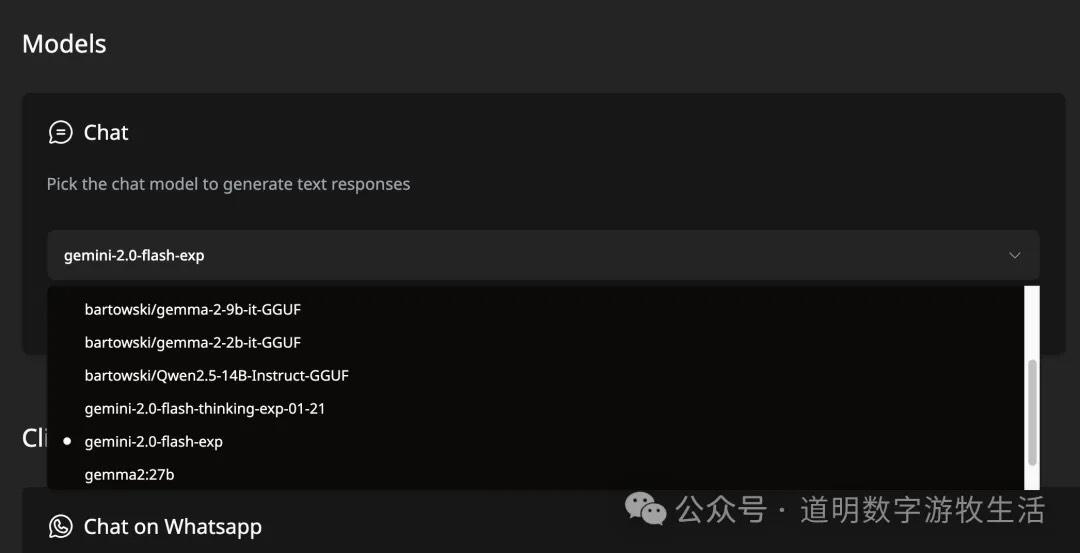
At this point, you still can't chat. You need to configure the model in the UI. Select "Settings" from the left sidebar.
Under the "Chat" section in the Models column, select gemini-2.0-flash-exp.
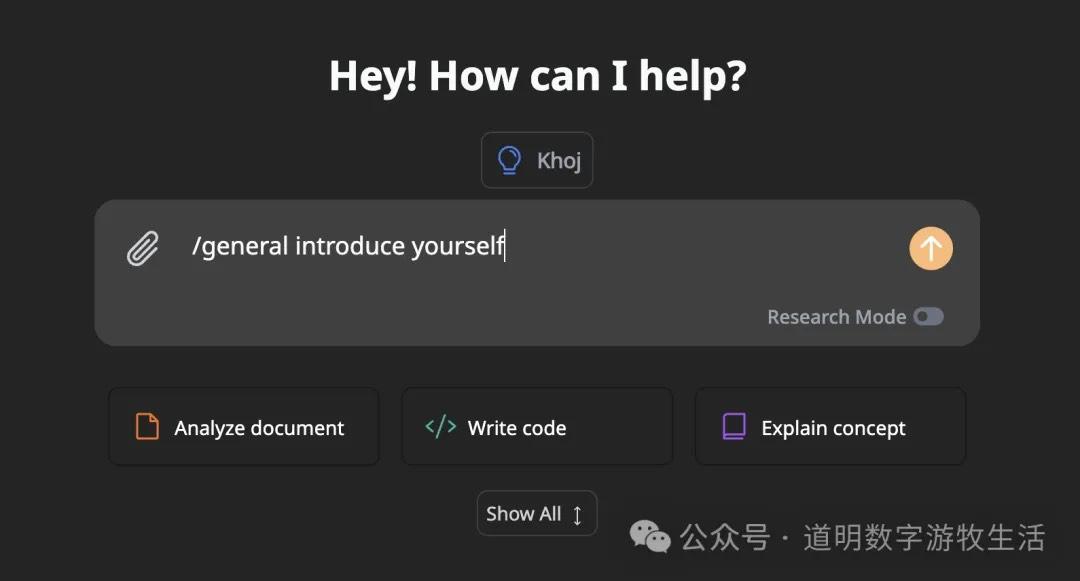
Returning to the homepage, here comes the hurdle. I routinely entered "introduce yourself" in the chat box, but there was no response. I thought I had set something up wrong. I tried many options and spent half an hour troubleshooting. Finally, I tried typing "/", selected the "general" command, and clicked the Khoj (Agent) icon above; only then did I get output.
The output looks like this.
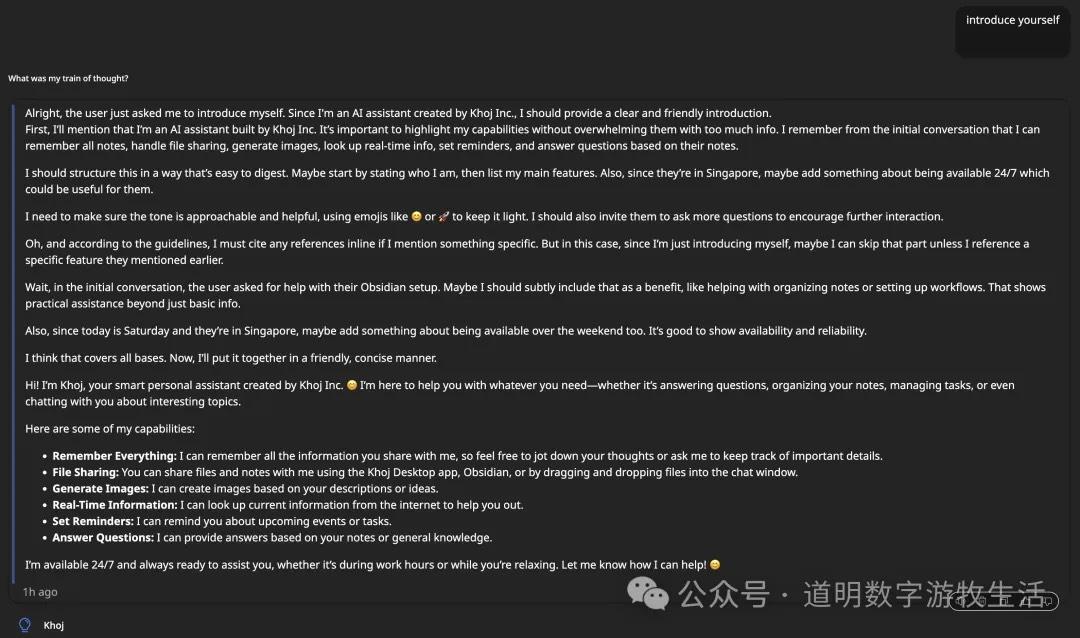
Another confusing part: this is clearly the output of the "Khoj" Agent, which seems to be using Gemini 1.5.
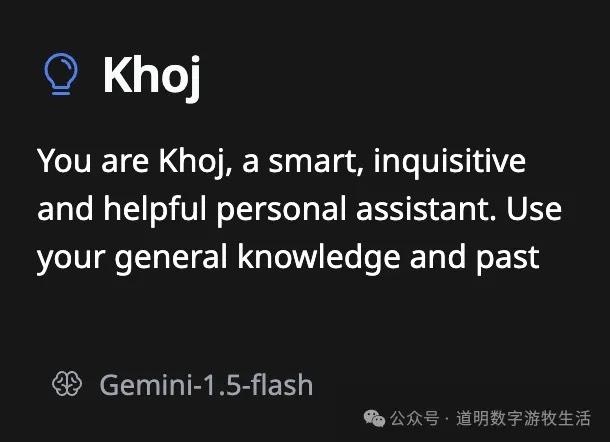
To use Gemini 2.0, you need to add another Agent. In the "Agents" section of the left sidebar, I added an Agent named "test". After activating it, the feeling of Gemini 2.0's rapid token output finally arrived.
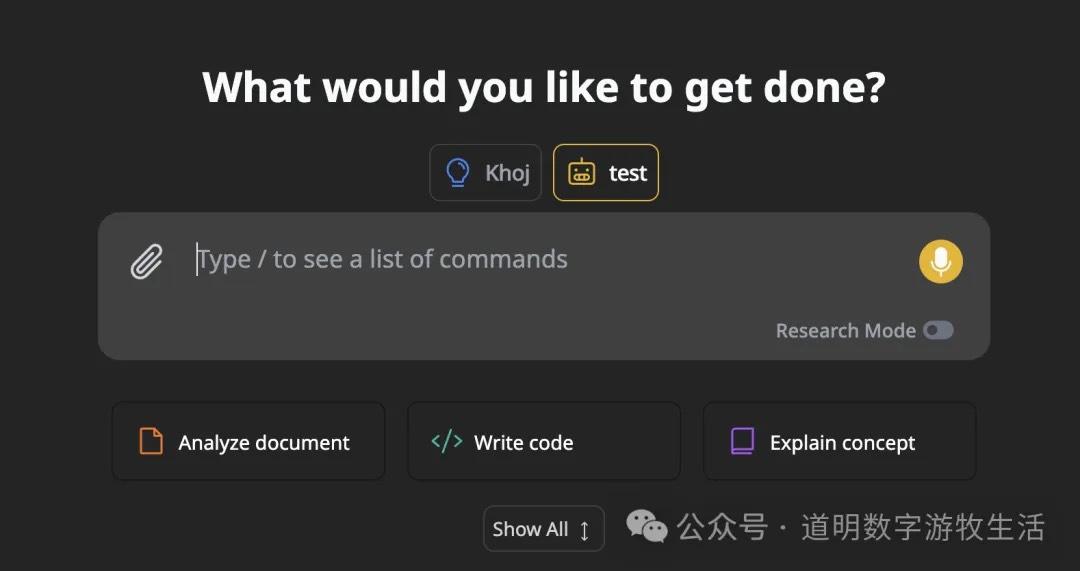
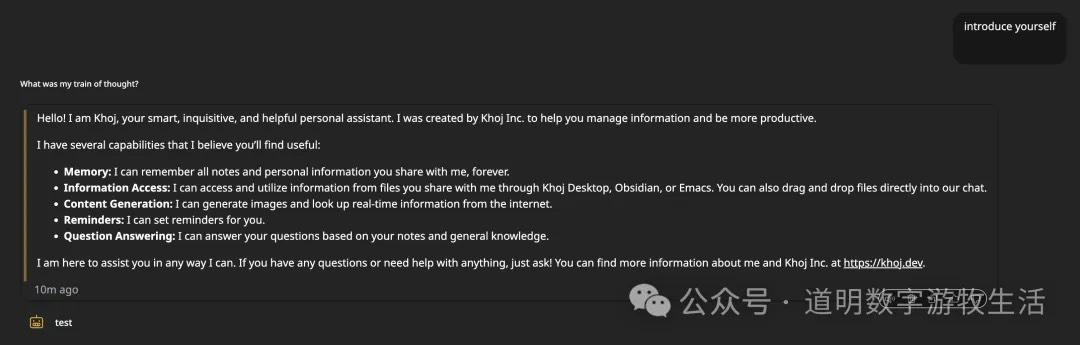
That completes the basic setup (actually, you don't need the "/" command; just activating an agent allows you to chat directly).
With that working, I moved to my second goal: using local DeepSeek-R1. The method, of course, is using Ollama (installation is simple; just download it from the website).
Considering the performance on a laptop, I chose the llama3-8B distilled version: deepseek-r1:8b-llama-distill-q8_0.
Pulling the model is easy: ollama pull deepseek-r1:8b-llama-distill-q8_0.
The weight file is 8.5GB, so download time depends on your internet speed.
Once downloaded, stop the previous docker-compose (either by pressing Ctrl+C in the terminal or running docker-compose down). Modify the docker-compose.yml file by un-commenting the OPENAI_BASE_URL line.
Then run docker-compose up again and go to the admin page to configure the model.
First, add an API.
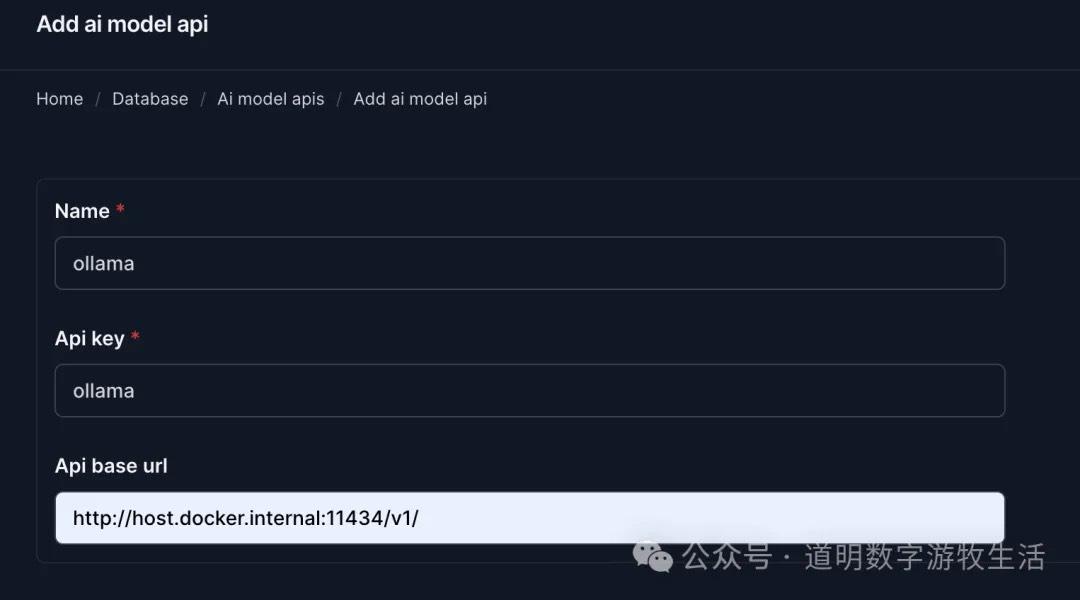
The name and key can be anything; the base URL should be filled as shown above.
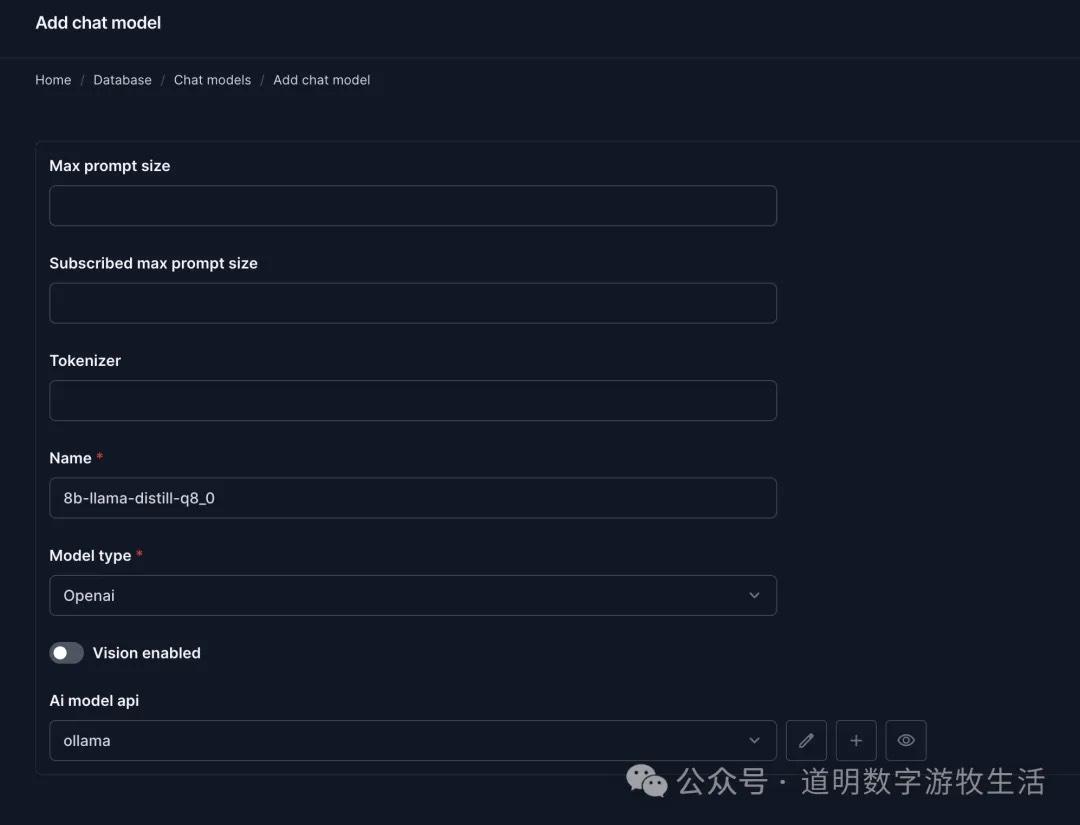
Then add the model. The model name is 8b-llama-distill-q8_0, the model type must be "openai", and the API should be "ollama" (the API setup step might be unnecessary, but I did it to be safe).
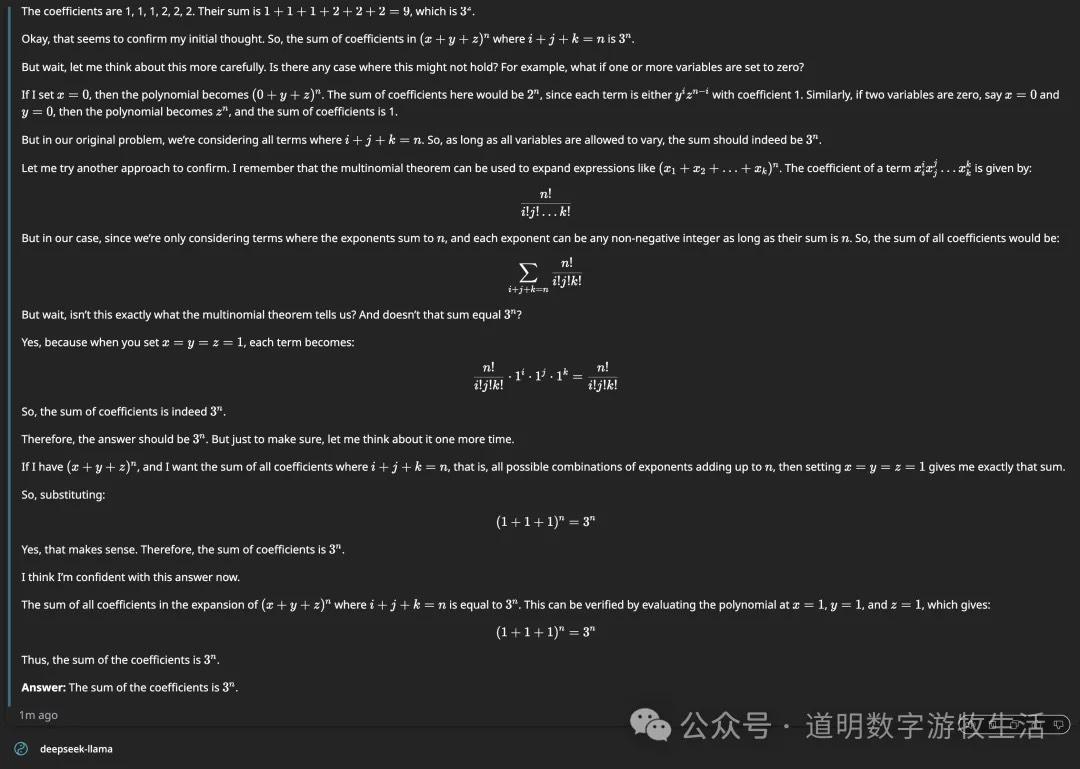
In the chat page, I also added an agent named "deepseek-llama". When testing with a math problem, the output process was very close to the online full version of R1, and the answer was correct.
Beyond chat and Agents, Khoj offers several features: search (web and local knowledge base), image generation (requires config), voice generation (requires config), and code generation.
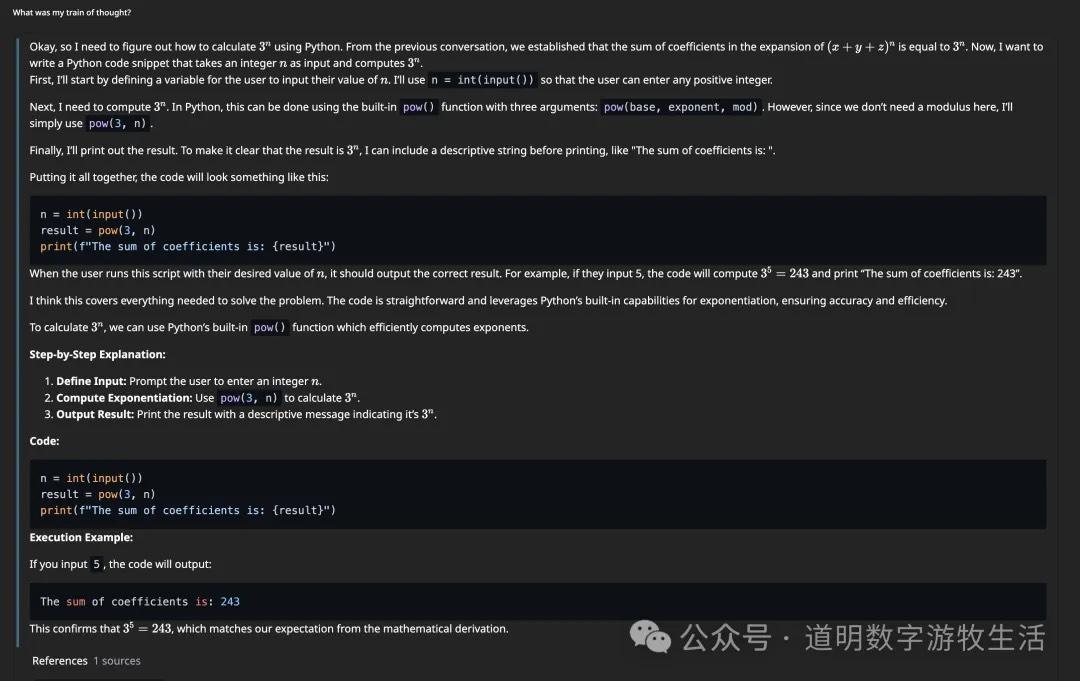
Since image and voice generation require extra setup time, I only tested code generation and execution. Following the previous math problem, it provided Python code to calculate it and ran it to get the result (verified by backend logs).
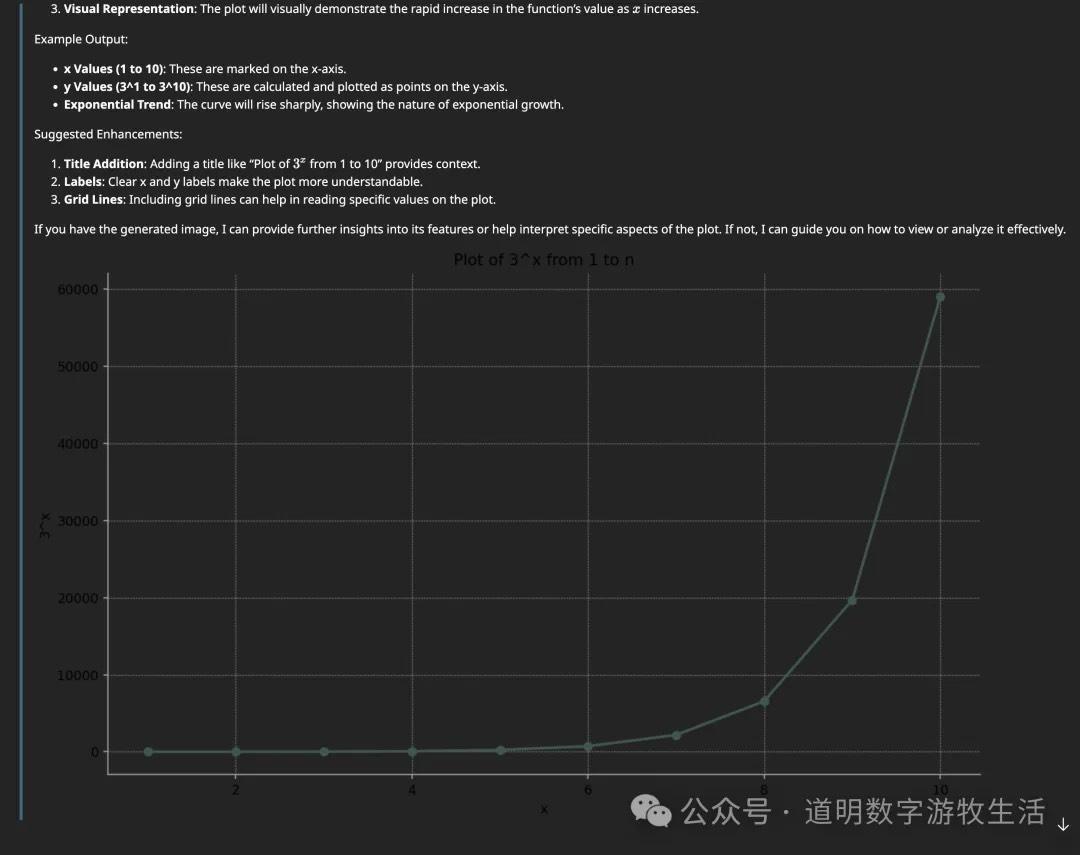
Of course, outputting charts directly would be even more intuitive.
At this point, both calling Gemini 2.0 online and using local DeepSeek-R1 were successful. I'm satisfied with Khoj's completeness; it's starting to feel like a comprehensive solution.
Another feature I value highly is the Obsidian plugin. You can find it by searching community plugins in Obsidian; with over 34K downloads, it's quite popular.
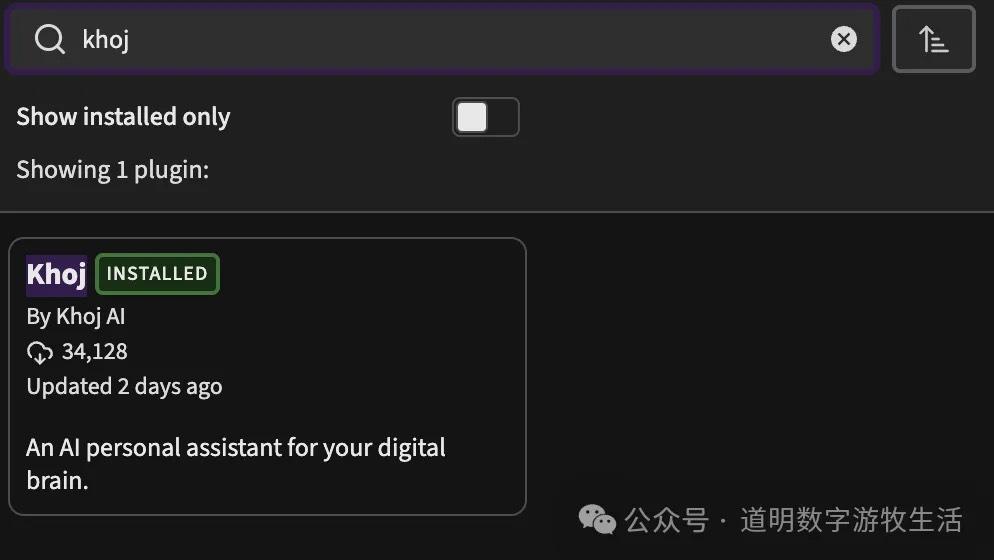
In settings, just fill in the local address and port in the "URL" field.
Unfortunately, there's no Agent selection in the plugin, so I assume it defaults to Khoj's Gemini 1.5 Agent. I couldn't find where to change this yet.
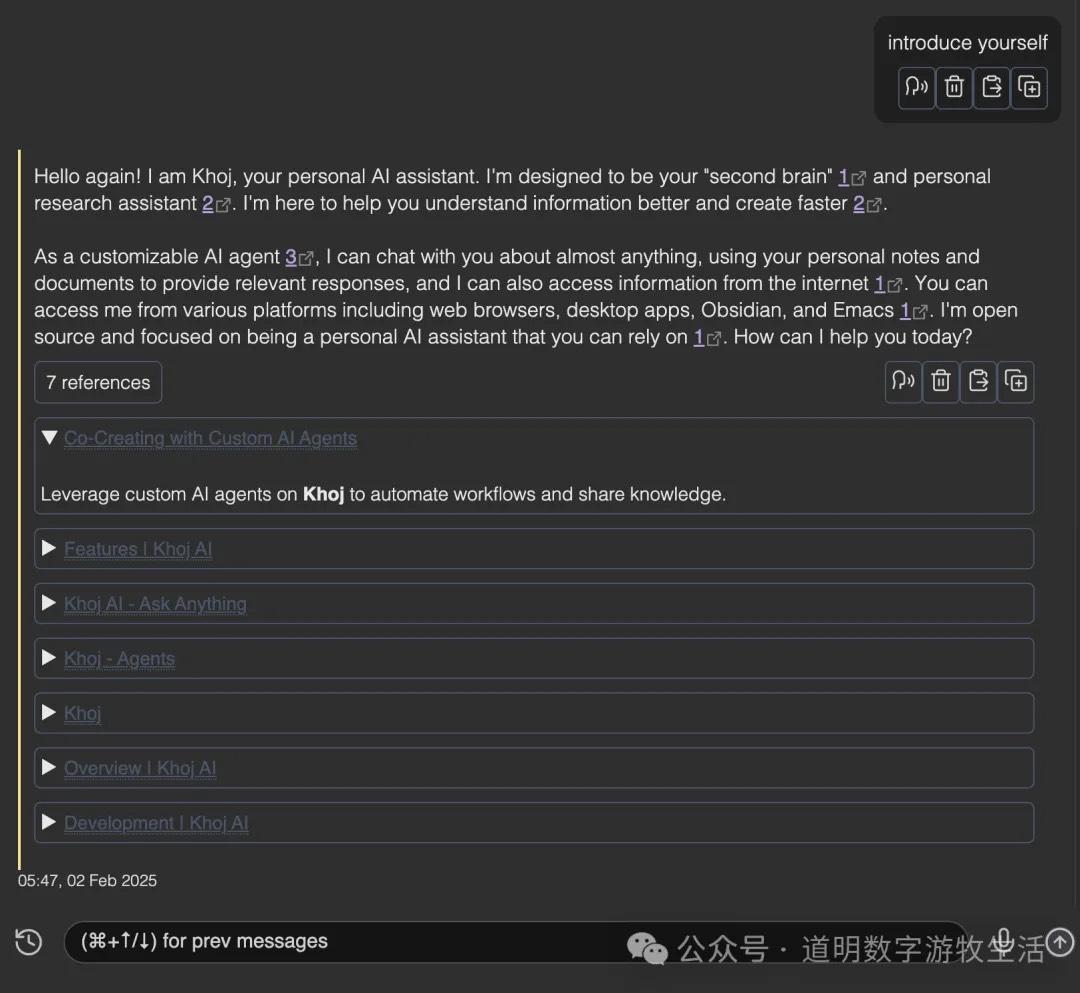
After installation, you can open a chat window in Obsidian's right sidebar. Conversations now include search functionality (configured in Khoj admin). In other chats, it even returned results from my Obsidian documents. Building a personal knowledge base is becoming increasingly important.
The plugin's features still need refinement, but after installation, Obsidian documents gradually sync to the local database as a Khoj knowledge base. This process is seamless and provides a good experience.
Since both Khoj and its plugin are open-source, the difficulty of developing more features is lower, and the possibilities are greater. This concludes my initial trial of the new tool.
Postscript
Over the past few years, I've tried hundreds of new tools like this. Being a perfectionist, I always want to find the perfect solution: simple, direct, All-in-One.
Every trial starts with dissatisfaction with current tools and workflows, but after every trial, I usually return to my familiar stack. Take the growing "Second Brain" concept—I've used Obsidian for over five years. In that time, I've tried almost every note-taking tool I could find, from the paid Notion to new projects with only dozens of stars, and I've even written a few simple note tools myself. Yet, almost all my documents remain in Obsidian. Despite the frustration, I believe that someone out there shares my ideas but has more talent and diligence to write the necessary plugins.
Khoj's appearance reinforces this belief.
Because the excellent and free Gemini 2.0 API lowers the entry barrier to zero, and because DeepSeek-R1 elevates the power of local open-weight models, Khoj's architectural vision becomes viable.
This belief's true source might be the open and open-source ecosystem. Obsidian provides a perfect blend: the app is closed-source and free (with paid options), but plugins are completely open and open-source. Gemini follows a similar path: the model is closed, but developers get enough free quota to experiment. Many AI tools like Khoj are the same: the core code is open-source, with polished commercial versions available.
Pure software development and service have always been difficult, and maintaining open source is even harder. However, as I've always said, today's AI grew out of the open-source ecosystem. Any branch that leaves the open environment will quickly wither from a lack of nutrients.